
The platform’s main goal is to configure the user’s e-invoicing system by issuing, renewing, or canceling the encryption seal identifier.
Login Process:
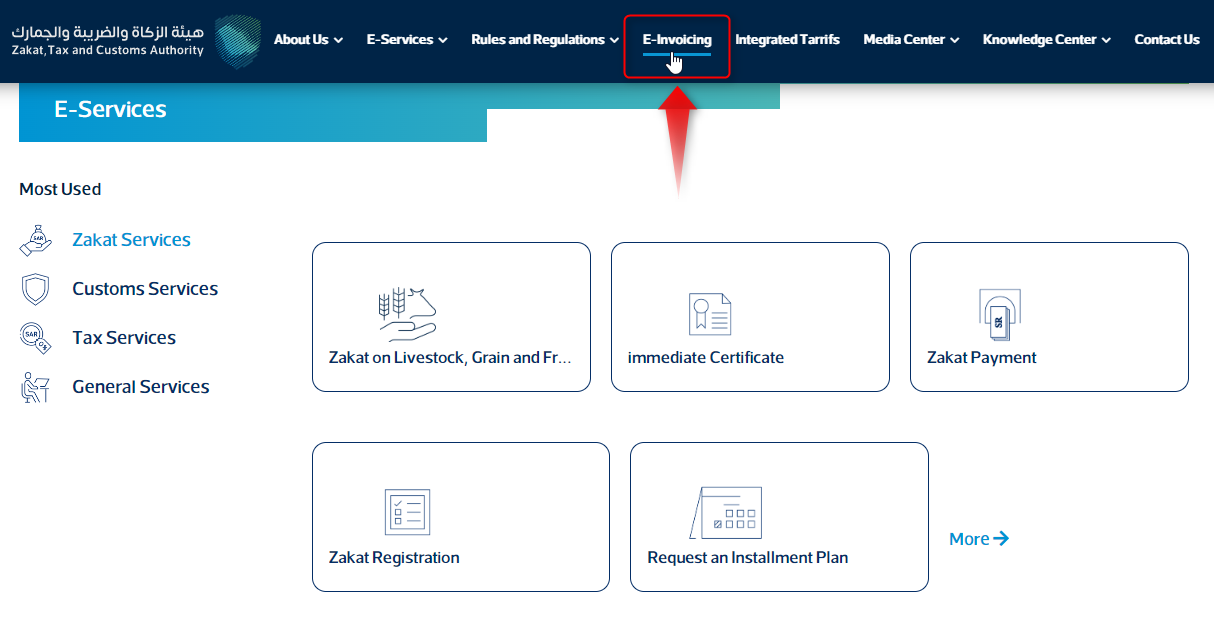
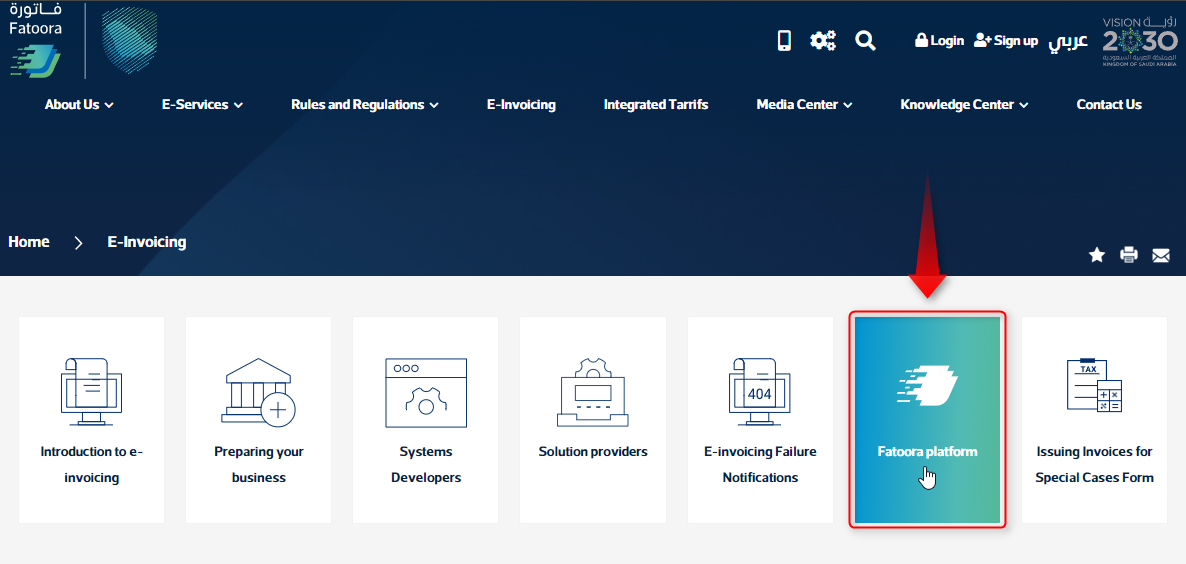
To access the Fatoora platform, visit: https://fatoora.zatca.gov.sa/ or go to the Zakat, Tax, and Customs Authority website. click on the electronic invoice icon, then select “Fatoora Platform.” The following page will appear.
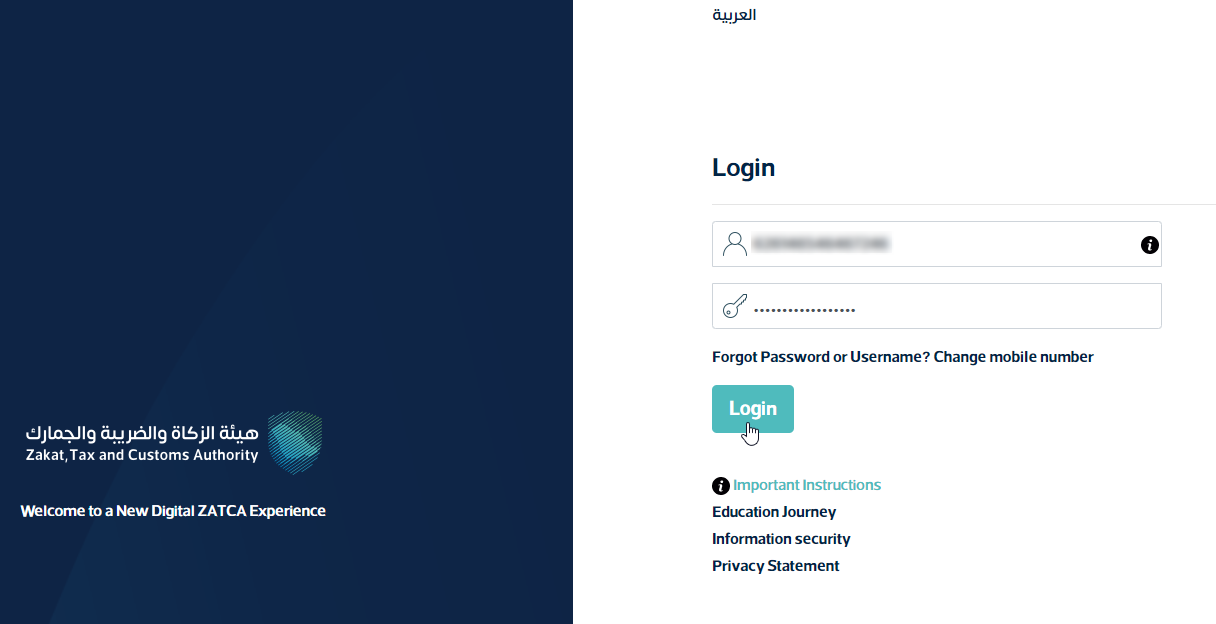
Taxpayers can access the platform using their login credentials for the taxpayer portal:
-
-
- The unique identifier or the email registered with the authority.
- The password.
-
Setting up the user’s electronic invoicing system:
After accessing the Fatoora platform and selecting the “Simulation” or “Production” feature,
On the main page, click on “Configure New Unit/Device “.
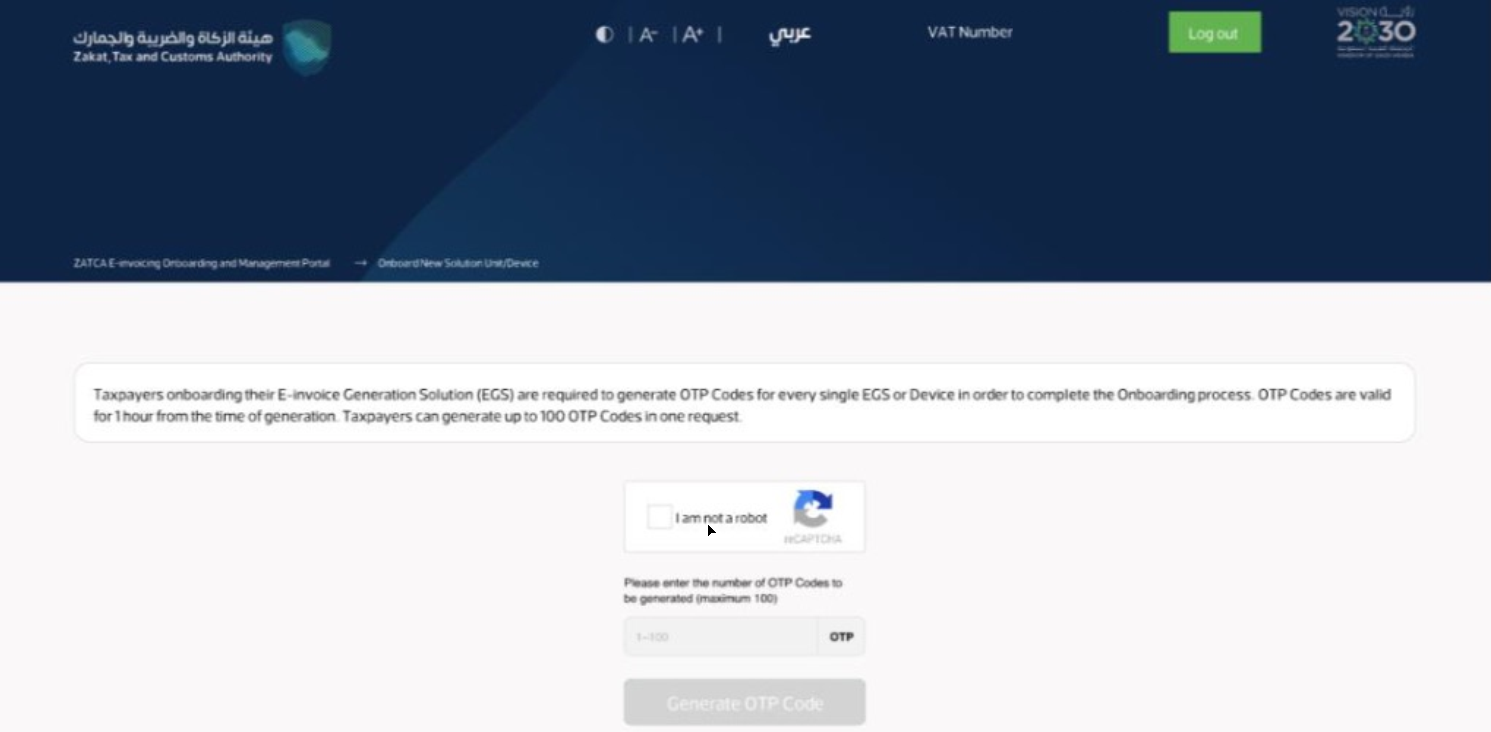
You will be taken to the “One Time Password” (OTP) page, as shown in the image.
Note: Enter the number of technical solutions to configure. This will generate activation codes (OTP) based on the number of solutions entered.
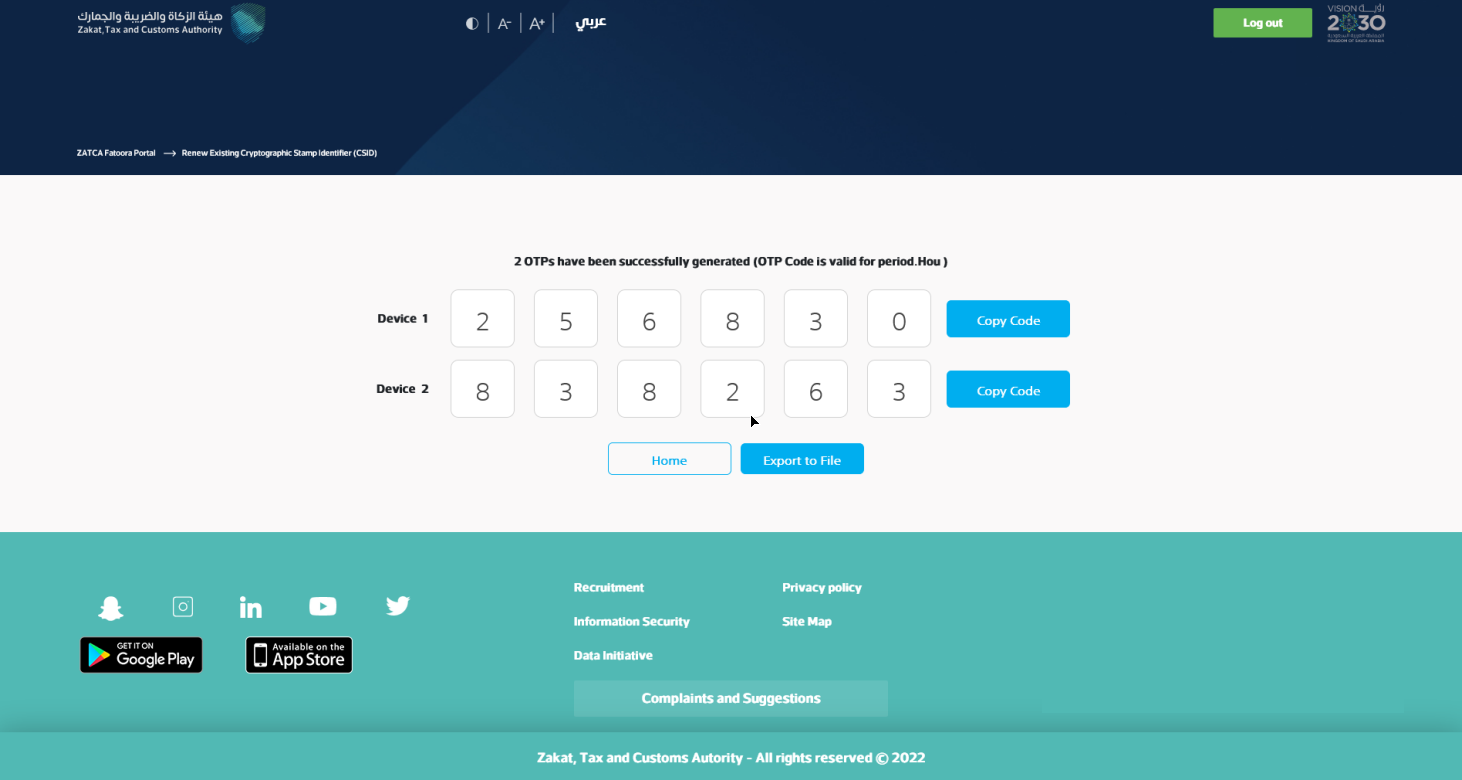
After setting the number of “One Time Password” (OTP), they will be generated and will be valid for one hour, as illustrated in the image:
After the “One Time Password” (OTP) is issued, it must be entered on our platform, TAX2GOV. This platform offers complete software integration and ensures compliance with the Fatoora platform’s electronic invoicing requirements, set by the Saudi Authority for Zakat, Tax, and Customs.
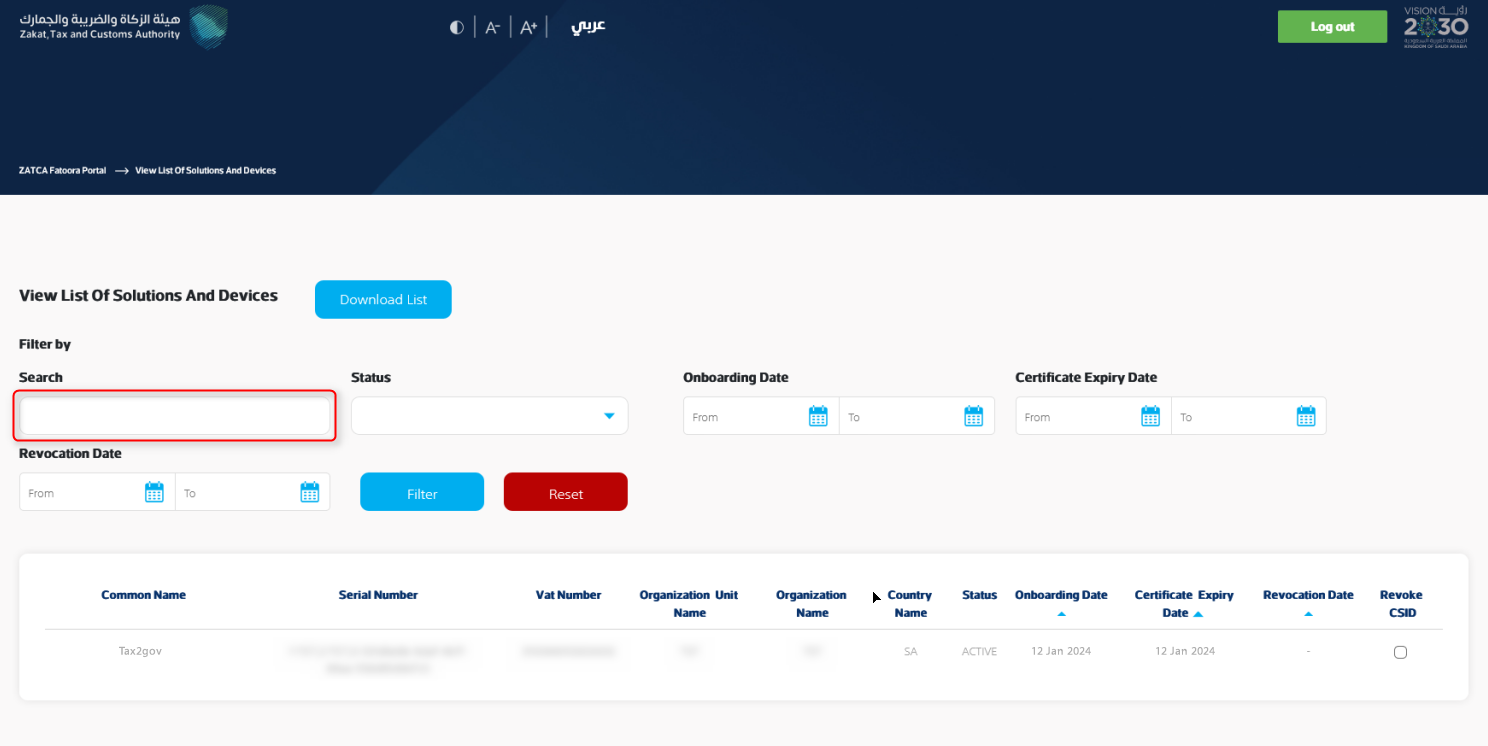
Users can review their devices linked to the Fatoora platform. All device details are accessible. Additionally, users can search for devices using the search box, as shown in the attached image.